Overview
ArtNet Manager is a cross-platform desktop application for managing DMX signals in live production environments. It provides the following core capabilities:
| Feature | Description |
|---|---|
| Signal Reception | Receive and display Art-Net / sACN packets in real time |
| DMX Visualization | Display all 512 channels in a color-coded grid (multi-universe support) |
| Signal Forwarding | Forward received signals to other IP addresses, protocols, or universes |
| Device Discovery | Automatically discover Art-Net/sACN nodes on the network |
| Signal Flow | Visualize signal paths from source to universe to destination in real time |
| Merge | Merge signals from multiple sources using HTP/LTP/Priority modes |
| Redundancy | Automatic PRIMARY/STANDBY failover via clustering |
| Auto-Restart | Guardian mode automatically recovers from crashes or accidental termination |
| Signal Recording | Record and play back DMX signals in ANMR binary format |
| Signal Checker | Built-in test signal generator with 12 patterns |
| Bug Report | One-click diagnostic snapshot for issue triage |
Supported Protocols
- Art-Net — Port 6454 (default), Universes 0-32767
- sACN (E1.31) — Port 5568 (default), Universes 1-63999
Supported Platforms
- macOS (Apple Silicon / Intel)
- Windows (x64)
- Linux (x64)
Quick Start Guide
1. Install and Launch
- Download the installer for your platform from the download page.
- Run the installer (macOS: open the .dmg and drag to Applications; Windows: run the .exe installer).
- Launch ArtNet Manager from your applications.
For production environments, enable Guardian Mode from the application menu to ensure automatic recovery from unexpected crashes.
2. Receive Signals
- Signal reception starts automatically when the application launches.
- Check the reception status on the Dashboard in the left sidebar.
- When packets arrive from DMX sources on the network, active universes are displayed.
3. View Channel Values
- Click Universes in the sidebar.
- Select a universe from the universe picker at the top.
- The 512-channel color grid updates in real time.
4. Set Up Forwarding
- Click Forwarding in the sidebar.
- Click Add Destination in the top right.
- Configure the destination: Name, Target IP, Protocol (Art-Net or sACN), and Mode (All Universes or Selected Only).
- Toggle the destination ON to start forwarding immediately.
5. Export Settings
- Click the Export button on the Forwarding page.
- The configuration is saved as a JSON file.
- Use Import to migrate settings to another machine.
Dashboard
The main overview page showing real-time status of the entire system.
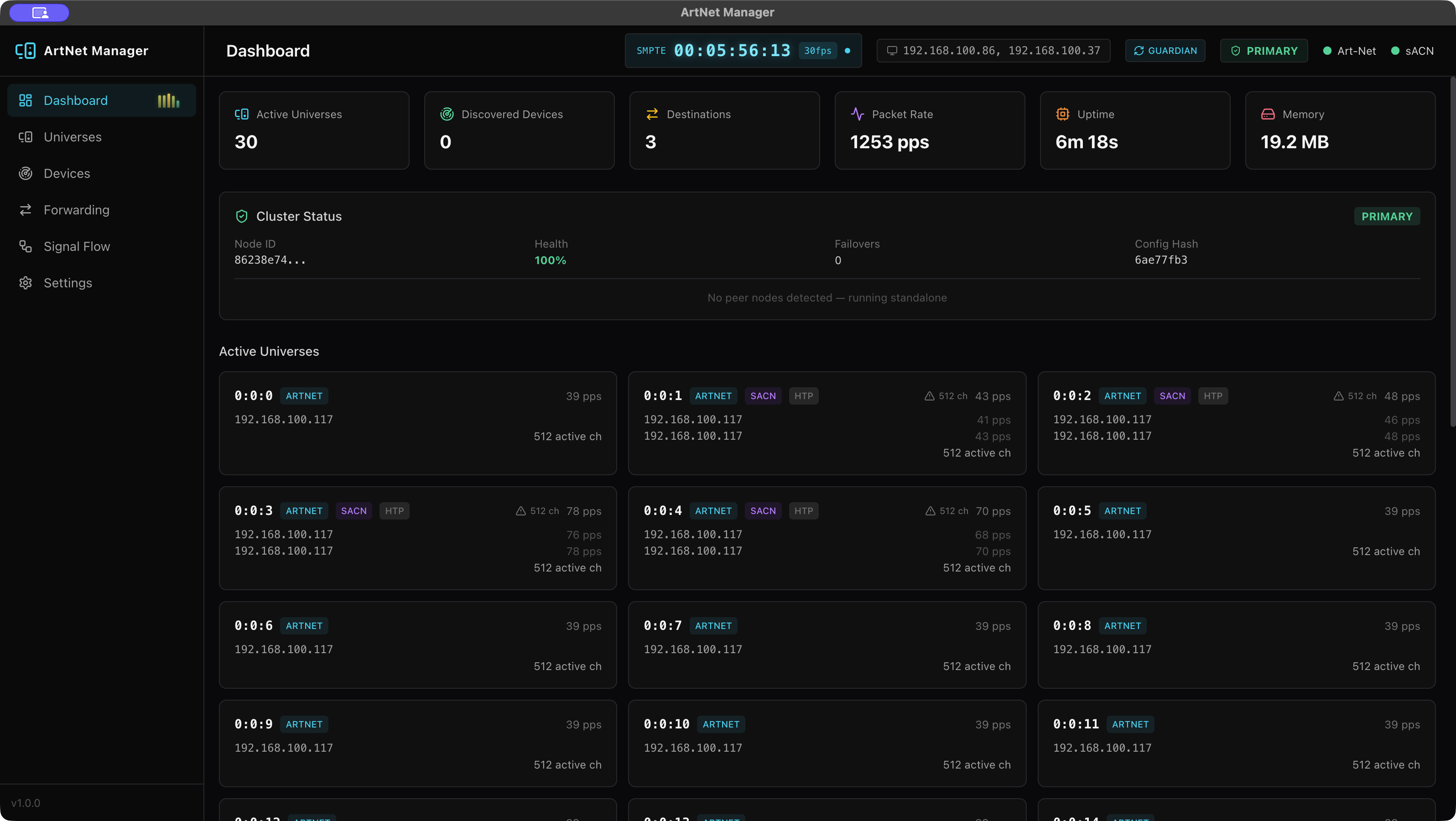
Statistics Cards
| Card | Content |
|---|---|
| Active Universes | Number of currently active universes |
| Discovered Devices | Number of discovered devices |
| Destinations | Number of configured forwarding destinations |
| Packet Rate | Packets received per second |
| Uptime | Engine uptime |
| Memory Usage | Memory consumption (MB) |
Active Universe List
Displays each universe's protocol (Art-Net / sACN), source IP, packet rate, and active channel count. A warning badge appears when merge conflicts are detected.
System Log
Real-time display of INFO / WARN / ERROR level logs. Use the Clear button to reset the log view.
Cluster Status
When clustering is enabled, displays the node's role (PRIMARY / STANDBY), health status, and peer information.
Universe Viewer
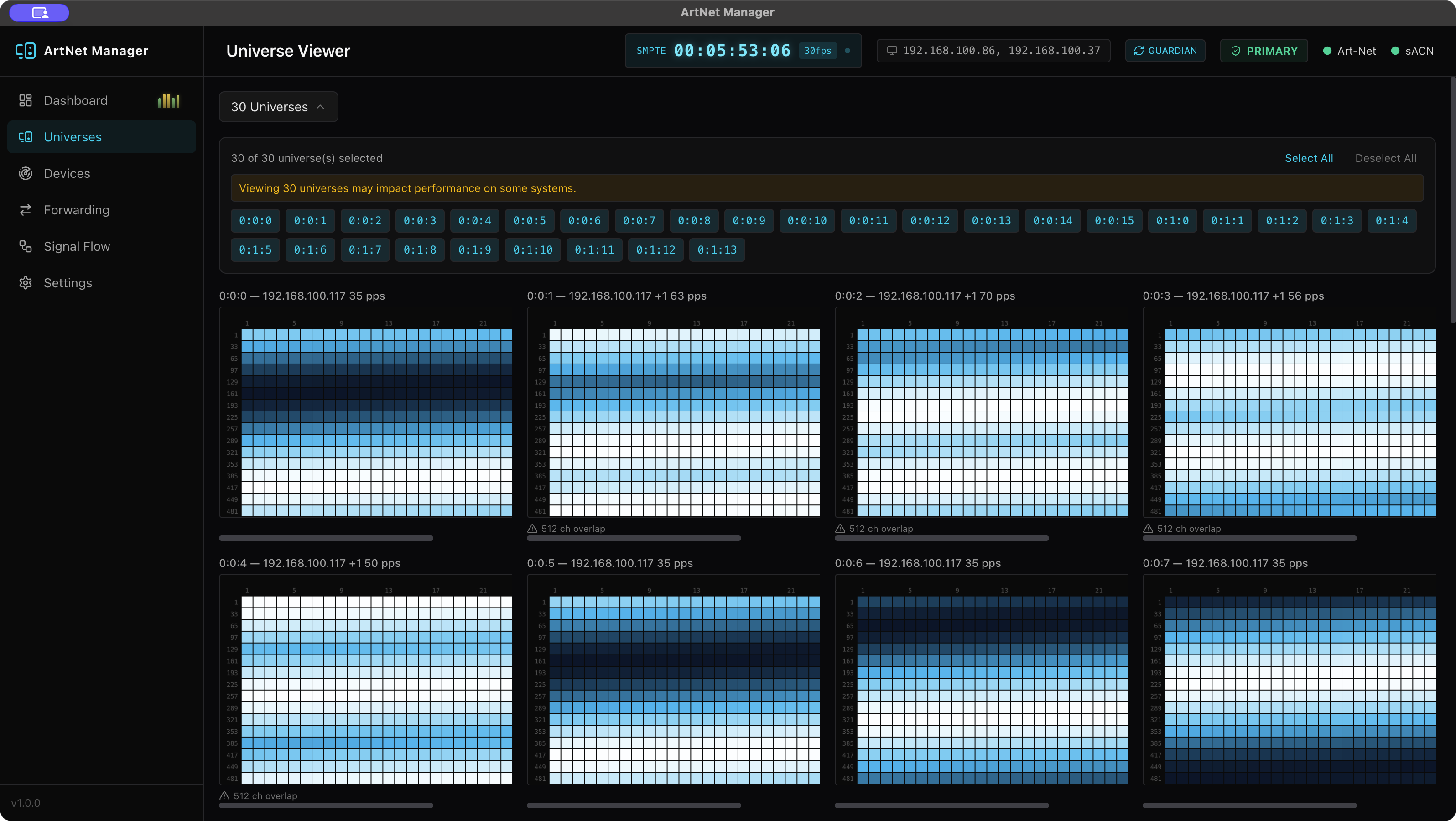
Real-time visualization of DMX channel data.
How to Use
- Select universes to display from the universe picker at the top (multi-select supported).
- Use Select All / Deselect All for batch operations.
- Displaying 16 or more universes simultaneously may affect performance.
Channel Grid
- Displays 512 channels in a color-coded grid
- Higher values appear brighter (black to blue to cyan to white gradient)
- Value display format is configurable in Settings:
| Format | Range |
|---|---|
| Decimal | 0 - 255 |
| Hex | 00 - FF |
| Percent | 0 - 100% |
Merge Conflict Display
When multiple sources are sending to the same universe, the number of conflicting channels and source IPs are displayed.
Device Discovery
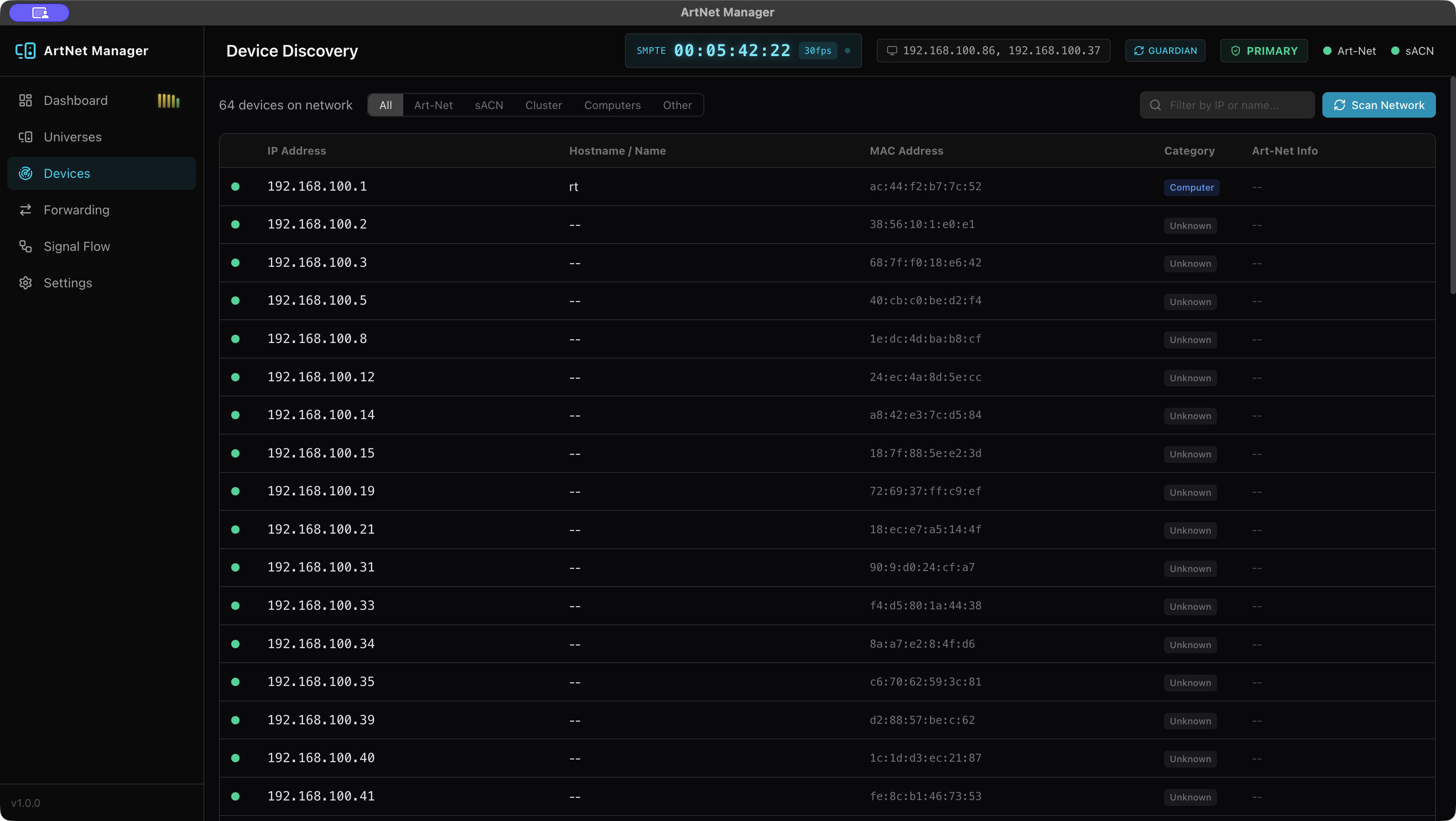
Automatically discover and manage DMX devices on the network.
Filter Tabs
Filter devices by category: All / Art-Net / sACN / Cluster / Computers / Other. Use the search box to filter by IP address, hostname, or MAC address.
Device Information
| Column | Content |
|---|---|
| Status | Online status (green = connected, gray = offline) |
| IP Address | Device IP address |
| Hostname | Hostname (custom name can be set) |
| MAC Address | MAC address |
| Category | Art-Net / sACN / Cluster / Computer / Network |
| Art-Net Info | Universe count, firmware version, port count |
Custom Names
Click the pencil icon next to the hostname to assign a custom name. Custom names persist across application restarts.
Network Scan
Click the Network Scan button to run an active network scan.
Forwarding
The core feature for routing received signals to specified destinations.
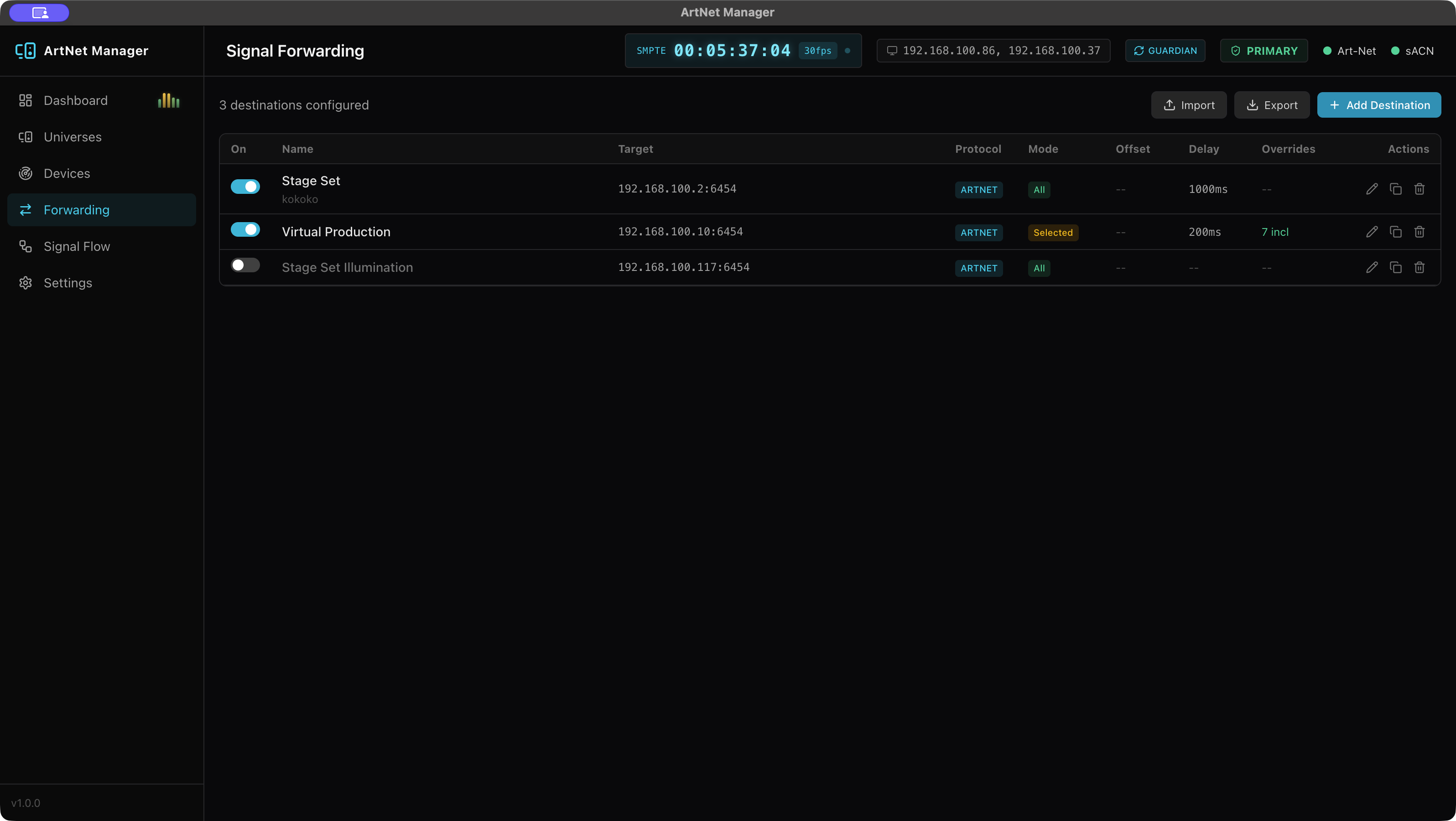
Destination Settings
| Setting | Description |
|---|---|
| Name | Destination identifier (required) |
| Target IP | Destination IP address (select from discovered devices or enter manually) |
| Protocol | Art-Net or sACN |
| Port | Art-Net: 6454 / sACN: 5568 (configurable) |
| Mode | All Universes (forward all, with exclusion rules) or Selected Only (forward specified universes only) |
| Universe Offset | Add an offset to source universe numbers when forwarding |
| Default Delay | Forwarding delay (0-2000 ms) |
| Description | Optional notes field |
Universe Overrides
Customize forwarding behavior on a per-universe basis.
| Setting | Description |
|---|---|
| Source Universe | Source universe number for this rule |
| Action | Forward or Exclude |
| Target Universe | Individual target universe (offset applied when omitted) |
| Delay | Individual delay time (default delay applied when omitted) |
Use range notation for bulk addition: 0-20,30-40,50
Operations
| Button | Function |
|---|---|
| Toggle Switch | Enable/disable a destination instantly |
| Pencil Icon | Edit settings |
| Copy Icon | Duplicate destination |
| Trash Icon | Delete destination |
| Export | Save all settings to a JSON file |
| Import | Load settings from a JSON file |
Settings are auto-saved (written to disk 2 seconds after any change).
Signal Flow
Visualize signal paths with a real-time interactive diagram.
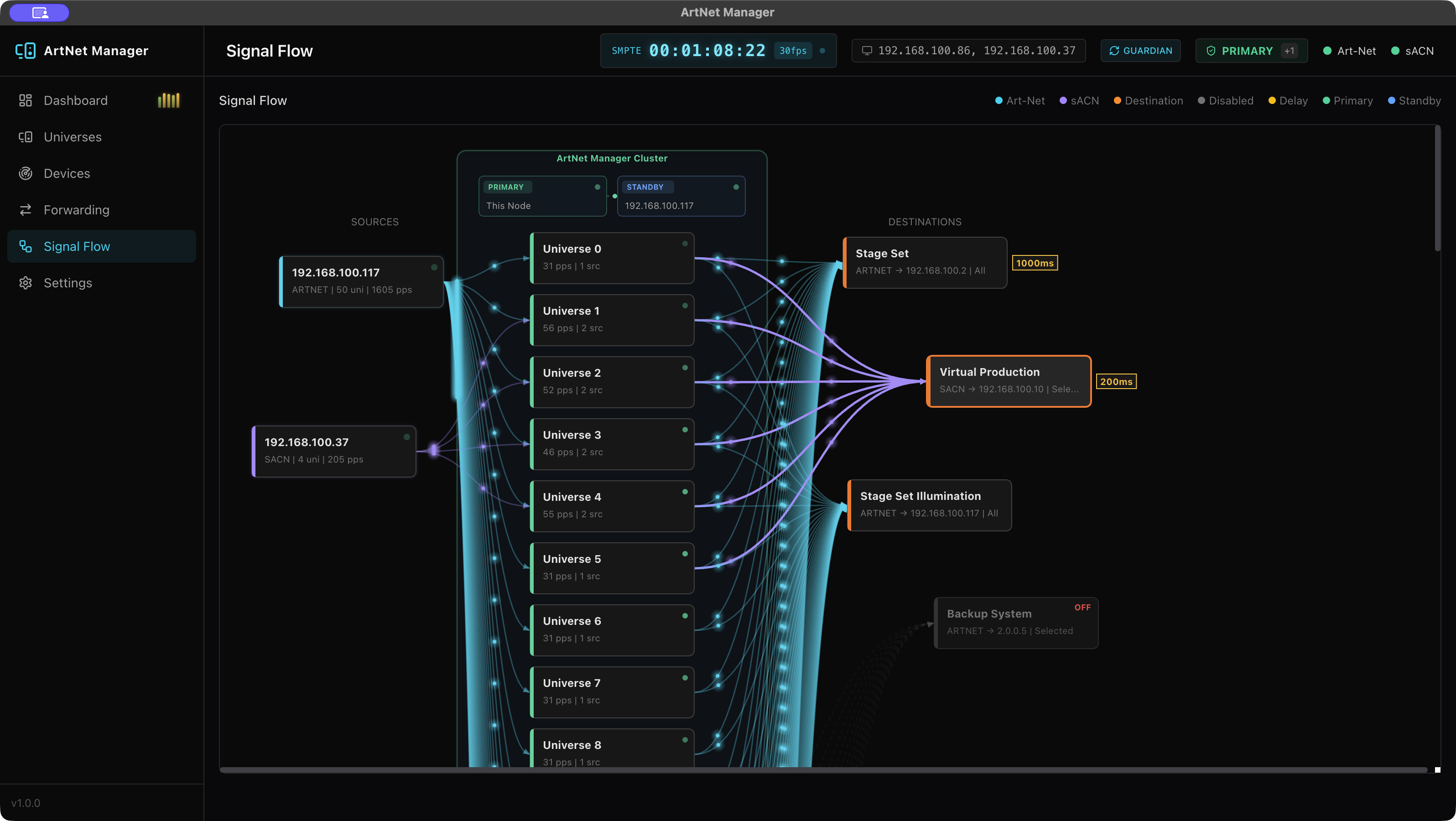
3-Column Layout
Node Information
- Sources (left column): Sender IP, protocol, universe count, packet rate
- Universes (center): Universe number, packet rate, source count
- Destinations (right column): Name, IP, protocol, mode, delay
Connection Lines
- Solid line = active signal flow
- Dashed line = disabled connection
- Particle animation shows signal flow direction
Interactions
- Drag nodes to adjust their position
- Hover over a node to highlight related connections
Simplified Mode (50+ Universes)
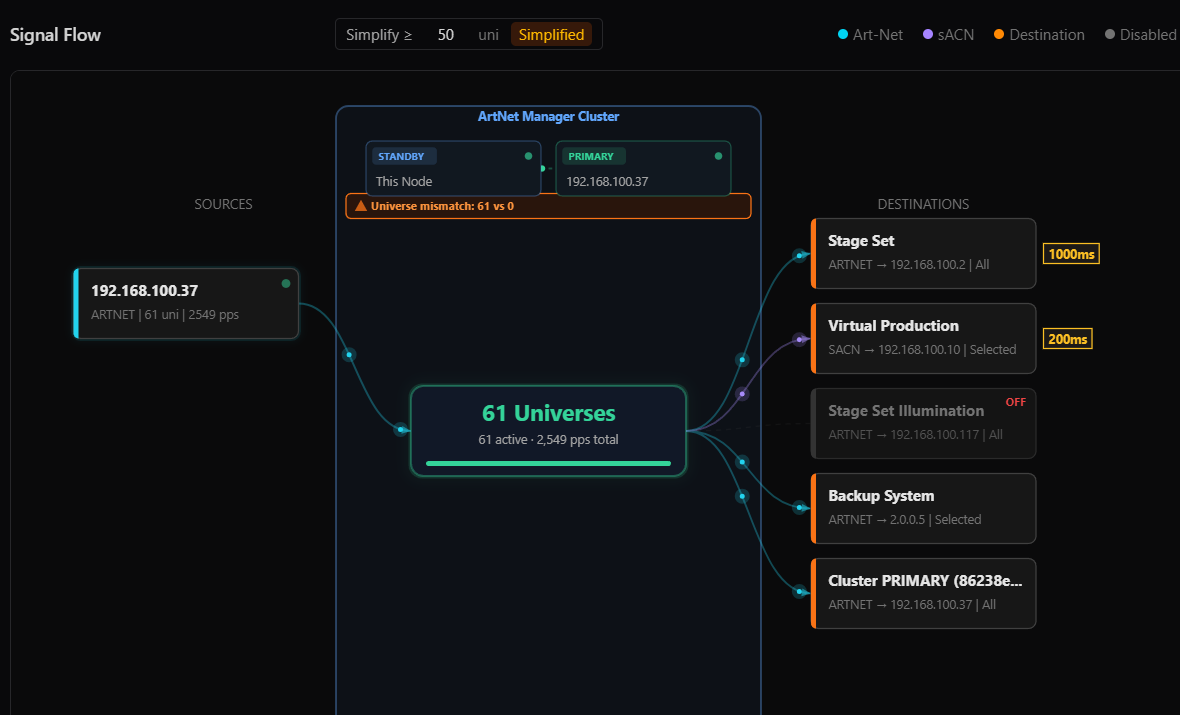
When the universe count exceeds the threshold (default: 50), Signal Flow automatically switches to a simplified view:
- Individual universe nodes are replaced by a single aggregated node showing the total count, active universes, and total packet rate
- Connections collapse from hundreds of lines to a few Source → Aggregate → Destination connections
- This maintains smooth 60fps rendering even with 90+ universes
The threshold is configurable via the Simplify ≥ N uni input in the Signal Flow header.
Recording & Playback
Record live DMX signals and play them back through configured forwarding destinations.
Recording
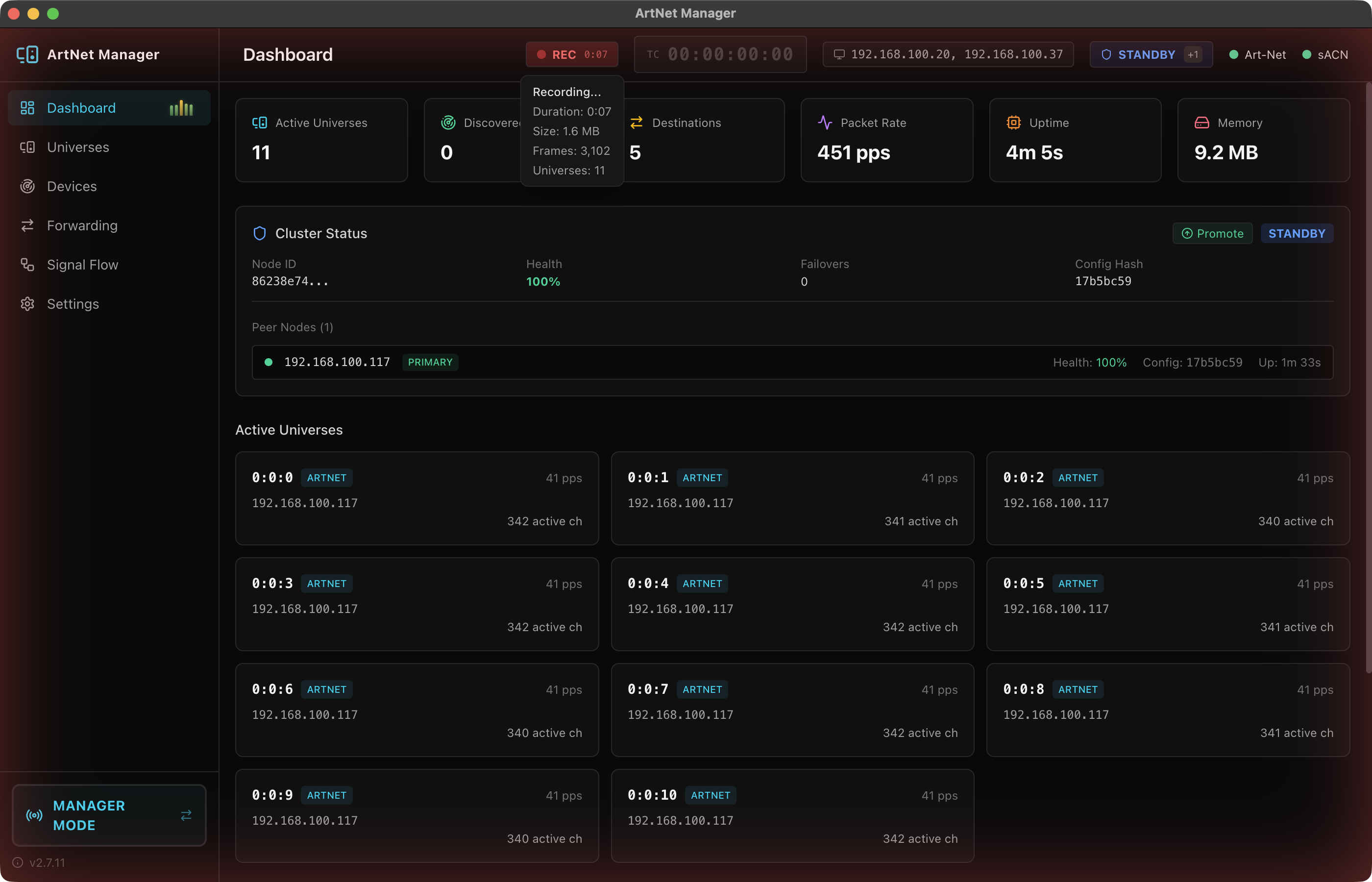
- Click the REC button in the header to start recording all active universes.
- A pulsing red REC overlay appears indicating recording is in progress.
- The REC tooltip shows real-time stats: duration, frame count, dropped frames, and file size.
- Click STOP to finish recording. The file is saved as an
.anmrfile in the configured recording directory.
Recording runs in a dedicated Worker Thread to prevent any impact on signal reception and forwarding performance.
ANMR File Format
ArtNet Manager uses a custom binary format (.anmr) optimized for DMX signal recording:
- Delta compression — Only changed channels are stored, dramatically reducing file size
- Seek index — One entry per second for fast navigation
- Multi-universe — All active universes recorded simultaneously
- Frame-accurate timestamps — Millisecond precision relative to recording start
Player Mode
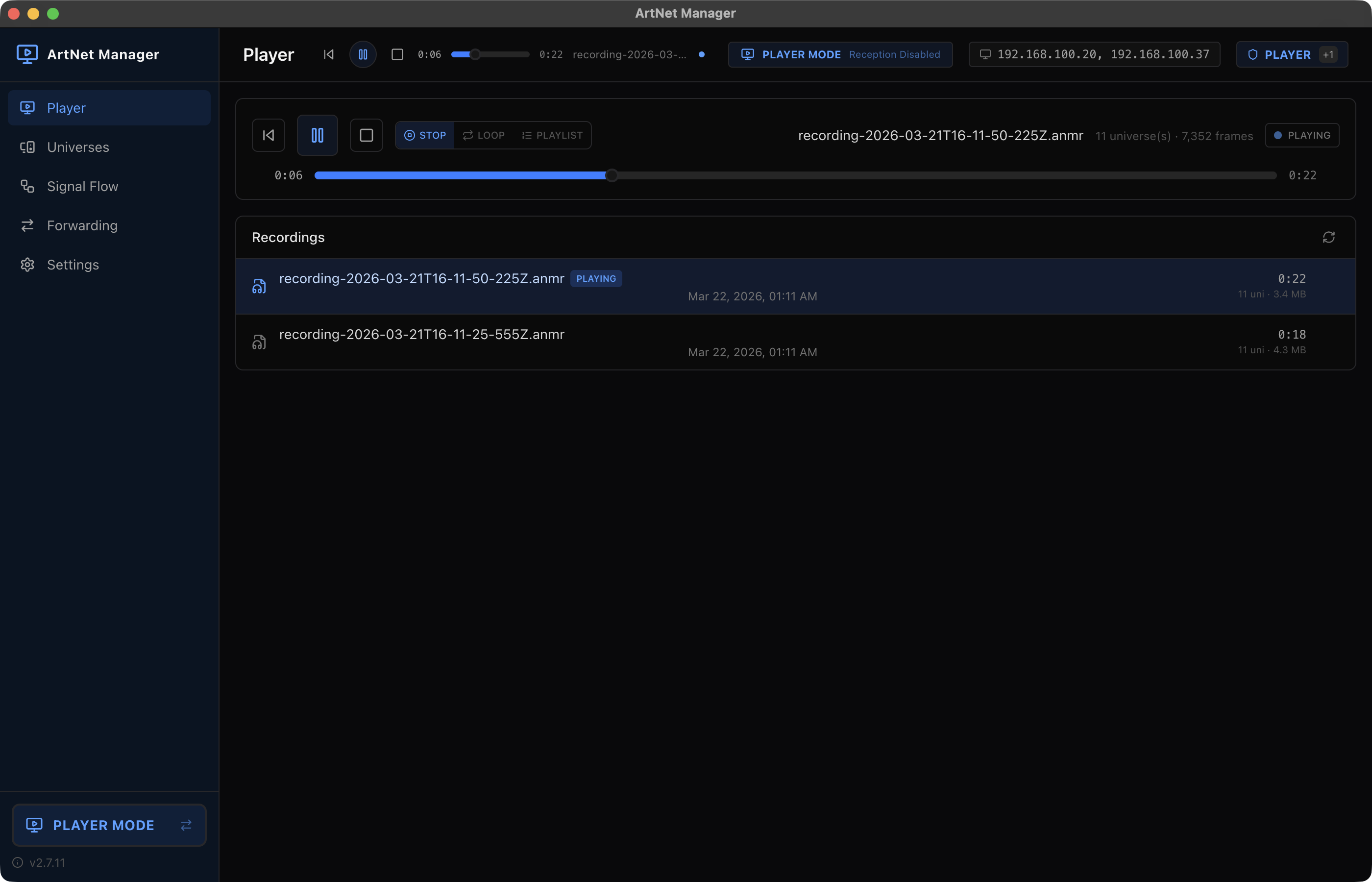
- Switch to Player Mode using the mode switch in the header.
- Open an
.anmrfile from the file browser. - Use the transport controls: Play, Pause, Stop, and the seek bar.
- Enable Repeat to loop playback continuously.
During playback, recorded signals are forwarded through all configured and enabled forwarding destinations, just like live signals.
Switching to Player Mode stops live signal reception. Switching back to Normal Mode resumes live reception. A confirmation dialog appears if recording is in progress.
Recording Settings
Configure the recording output directory in the Settings page under the Recording section. The default location is ~/Documents/ArtNet Manager Recordings/.
Signal Checker
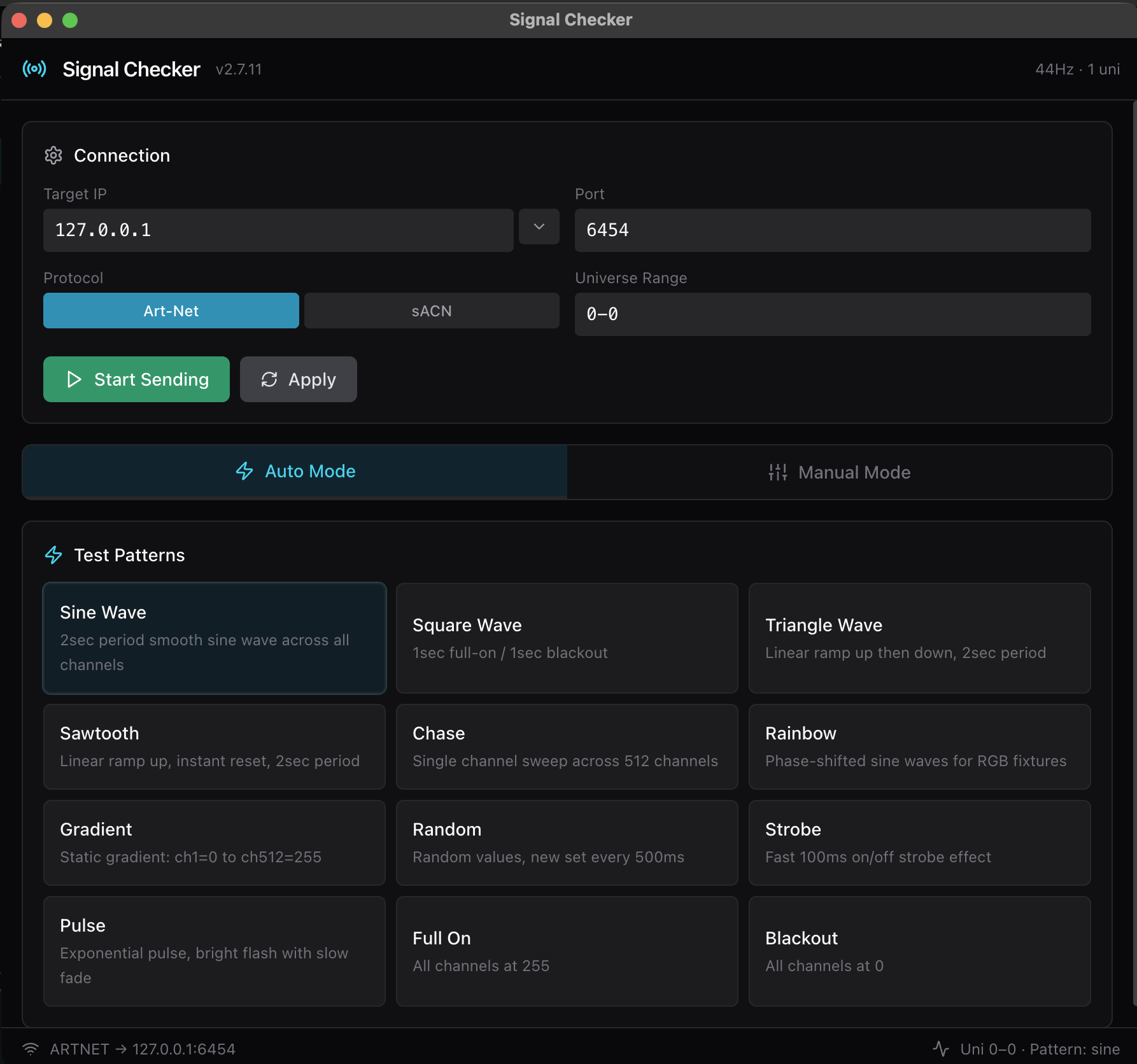
A built-in test signal generator for verifying Art-Net/sACN signal paths without external hardware.
How to Launch
Open Signal Checker from the application menu: Tools → Signal Checker. It opens in a separate window.
Connection Settings
| Setting | Description |
|---|---|
| Target IP | Destination IP address for test signals (default: 127.0.0.1 for local testing) |
| Port | Target port (Art-Net: 6454, sACN: 5568) |
| Protocol | Art-Net or sACN |
| Universe Range | Universes to send test signals to (e.g., 0-50) |
Auto Mode (12 Test Patterns)
| Pattern | Description |
|---|---|
| Chase | Sequential channel chase across all channels |
| Random | Random values across all channels (changes every frame) |
| Gradient | Smooth gradient from channel 1 to 512 |
| Strobe | All channels alternating between 0 and 255 |
| Sine Wave | Sine wave pattern moving across channels |
| Full On | All channels at 255 |
| Blackout | All channels at 0 |
| Odd/Even | Alternating odd and even channels |
| Binary Count | Binary counting pattern |
| Ramp Up | Linear ramp from 0 to 255 |
| Ramp Down | Linear ramp from 255 to 0 |
| Pulse | Pulsing intensity on all channels |
Manual Mode
Set individual channel values manually for targeted testing. Useful for verifying specific channel mappings and fixture responses.
Use Signal Checker with Target IP 127.0.0.1 to send test signals back to ArtNet Manager itself, verifying the entire signal path including forwarding destinations.
Settings
Network Settings
Single Interface mode (default): Select a network interface from the dropdown. Choose "All Interfaces (0.0.0.0)" to listen on all interfaces.
Multi-NIC mode: Configure Art-Net/sACN enabled/disabled per interface. See the Multi-NIC section for details.
Protocol Settings
| Setting | Default | Description |
|---|---|---|
| Art-Net Enabled | ON | Art-Net protocol reception |
| Art-Net Port | 6454 | Art-Net listen port |
| sACN Enabled | ON | sACN (E1.31) protocol reception |
| sACN Port | 5568 | sACN listen port |
| sACN Universes | 1 | sACN universes to receive (comma-separated) |
Display Settings
| Setting | Options |
|---|---|
| UI Update Rate | 15 fps (low CPU) / 30 fps (recommended) / 60 fps (smooth) |
| Universe Number Format | Decimal(1), Decimal(0), Hex, Art-Net(Net:Sub:Uni), ASCII |
| Channel Number Format | Decimal(1), Decimal(0), Hex |
| Channel Value Format | Decimal (0-255), Hex (00-FF), Percent (0-100%) |
Merge Settings
| Setting | Description |
|---|---|
| Merge Mode | HTP / LTP / Priority (see Merge Engine section) |
| Source Timeout | Time before an unresponsive source is excluded (1000-60000 ms) |
Advanced: Merge Engine
Configure how signals from multiple sources on the same universe are combined.
| Mode | Behavior |
|---|---|
| HTP | Highest Takes Precedence — adopts the highest value for each channel. Prevents unintended fade-out leaks. |
| LTP | Latest Takes Precedence — adopts the most recently received value for each channel. Reflects the latest operation. |
| Priority | Source priority-based selection. Falls back to HTP when sources share the same priority. |
- Global setting: Select a common merge mode for all universes on the Settings page.
- Per-universe setting: Apply a different merge mode to specific universes only.
- Source timeout: Sources that stop sending packets for the specified duration are automatically excluded.
Advanced: Multi-NIC
Receive signals independently on multiple network interfaces.
Use Cases
- Separate networks for Art-Net and sACN
- Simultaneously receive signals from different subnets
- Redundant backup network configuration
Setup Procedure
- Switch to Multi-NIC mode on the Settings page.
- Enable Art-Net / sACN for each interface.
- Click Apply NIC Config.
Signals received on each NIC are automatically combined by the merge engine.
Advanced: Cluster / Redundancy
Build a cluster with two or more ArtNet Manager instances for automatic failover.
Roles
| Role | Behavior |
|---|---|
| PRIMARY | Actively forwards signals. Source of configuration changes. |
| STANDBY | Signal forwarding is muted. Automatically promoted when PRIMARY fails. |
Operation Flow
- On startup, peers are automatically discovered (DISCOVERING state).
- Roles are assigned (INIT to PRIMARY or STANDBY).
- Configuration changes on PRIMARY are automatically synced to STANDBY.
- If PRIMARY health degrades, STANDBY is automatically promoted (PROMOTING to PRIMARY).
Operations
- Monitor cluster status on the Dashboard or header bar.
- Use Force Role to manually switch roles.
- Toggle Auto Sync on or off as needed.
Manual Promote to PRIMARY
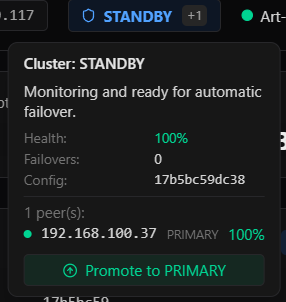
You can manually promote a STANDBY node to PRIMARY:
- Click the Promote to PRIMARY button in the cluster tooltip (hover over the cluster badge in the header).
- Alternatively, use the Promote button next to Cluster Status on the Dashboard.
The promoted node immediately becomes PRIMARY, and the previous PRIMARY transitions to STANDBY. Split-brain prevention ensures only one PRIMARY exists at any time.
Double-promotion is safe: if you promote Node A then immediately promote Node B, Node B becomes PRIMARY and Node A returns to STANDBY automatically.
Advanced: Guardian Mode
Automatically restarts the application when it terminates unexpectedly.
Behavior
- Automatically restarts after normal termination or crash (approximately 2 seconds).
- A GUARDIAN badge is displayed in the header bar.
- If the renderer process crashes, signal processing continues and the UI auto-reloads after 2 seconds.
Permanent Shutdown
Normal window close or Quit operations will be overridden by Guardian, and the app will restart.
To completely stop the application:
- Menu: ArtNet Manager → Permanent Shutdown
- Keyboard shortcut: Ctrl+Shift+Q (Mac: Cmd+Shift+Q)
- After the confirmation dialog, the Guardian is suppressed and the app fully terminates.
About & Feedback
About Dialog
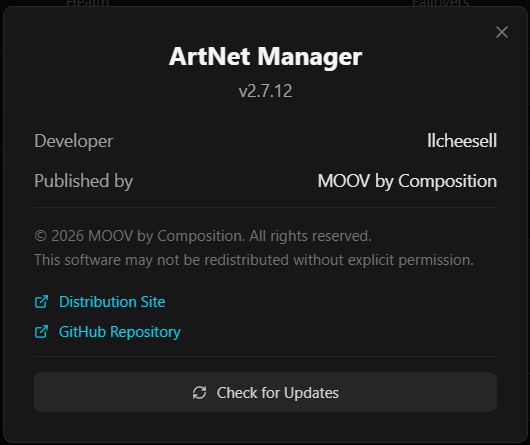
Access from the sidebar at the bottom. Shows the current app version, developer information, and links to the distribution site and repository.
Version Check
Click Check for Updates in the About dialog to compare your version against the latest release. If an update is available, a download link is provided.
Bug Report & Feature Request
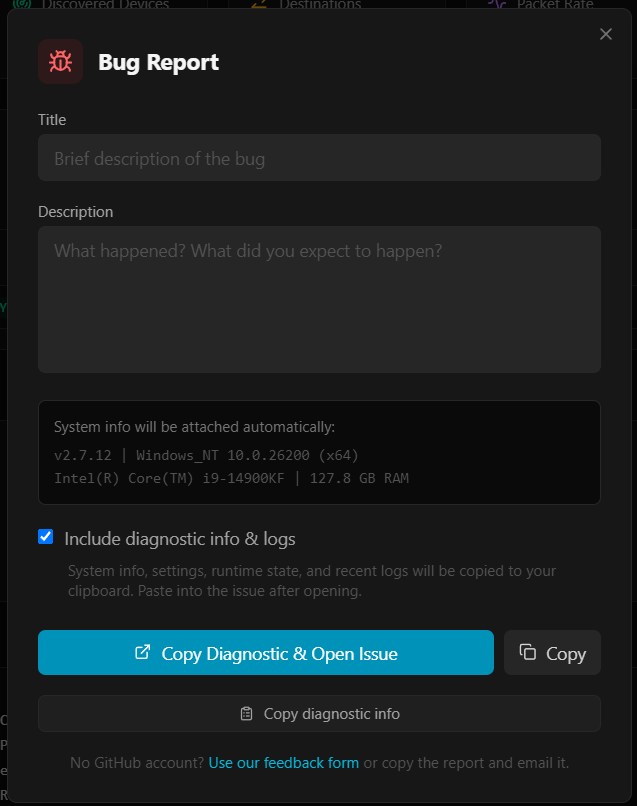
Access from the sidebar menu. Two options:
- Bug Report — Describe the issue, and a comprehensive diagnostic snapshot is automatically prepared
- Feature Request — Describe the desired feature
Diagnostic Snapshot
The diagnostic snapshot includes all information needed for issue triage:
- System information (OS, CPU, memory, hostname)
- Network interfaces with MAC addresses
- Engine settings (protocols, ports, NIC configuration)
- Universe state (count, active, packet rates)
- Forwarding destination settings and status
- Cluster status (role, peers, health)
- Recording/playback state
- Recent errors and warnings
- Last 100 log entries
Click Copy Diagnostic & Open Issue to copy the snapshot to your clipboard and open a GitHub issue, or use Copy to copy the full report for email or the feedback form.
Troubleshooting
Not Receiving Signals
| Check | Solution |
|---|---|
| Network Interface | Verify the correct interface is selected in Settings. Use "0.0.0.0" to listen on all interfaces. |
| Firewall | Ensure Art-Net (UDP 6454) / sACN (UDP 5568) are allowed. |
| Protocol Enabled | Verify Art-Net / sACN are enabled on the Settings page. |
| Subnet | Confirm you are on the same subnet as the sender, or that broadcast/multicast traffic can reach you. |
| sACN Universes | For sACN, you must specify which universe numbers to receive on the Settings page. |
Forwarding Not Working
| Check | Solution |
|---|---|
| Destination Toggle | Verify the destination is enabled (ON) on the Forwarding page. |
| Target IP | Confirm the target IP address is correct and reachable. |
| Universe Matching | In "Selected Only" mode, ensure the target universes are included in the overrides. |
| Cluster Role | STANDBY nodes do not forward signals. Confirm the node is PRIMARY. |
| Universe Offset | Ensure the offset does not push the target universe outside the valid protocol range. |
| Rate Limit | Output is capped at 44 Hz. With zero delay, high-frequency input may be throttled. |
Poor Performance
| Check | Solution |
|---|---|
| UI Update Rate | Reduce to 15 fps in Settings to lower CPU load. |
| Universe Display Count | Displaying 16+ universes simultaneously may cause slowdowns. |
| Memory Usage | Check on the Dashboard. Large delay buffers may be the cause. |
| Delay Buffers | Large delay values (>1000 ms) increase buffer memory consumption. |
Cluster Issues
| Check | Solution |
|---|---|
| Network | Ensure both nodes are on the same network segment and can communicate. |
| Status Check | Verify that the peer appears in the Dashboard cluster section. |
| Config Sync | Confirm Auto Sync is enabled and Config Hash matches. |
| Manual Override | Use Force Role to manually switch PRIMARY/STANDBY for testing. |
Cannot Fully Stop Guardian Mode
- Use Permanent Shutdown from the menu, or press Ctrl+Shift+Q (Mac: Cmd+Shift+Q).
- Normal window close or Quit (Ctrl+Q) will be intercepted by Guardian and the app will restart.
Merge Conflict Warnings
- This indicates multiple sources are sending to the same universe.
- Select an appropriate merge mode (HTP/LTP/Priority) on the Settings page.
- You can also apply a different merge mode to specific universes only.
Recording Issues
| Check | Solution |
|---|---|
| Dropped Frames | Check the REC tooltip for drop count. High drops may indicate disk I/O bottleneck or CPU load. Try reducing the number of active universes or forwarding destinations during recording. |
| Large File Size | ANMR files use delta compression, but high-change signals (e.g., random patterns on 90 universes) produce large files. Consider recording shorter segments. |
| Playback Not Forwarding | Ensure you are in Player Mode and forwarding destinations are enabled. STANDBY nodes do not forward. |
ArtNet Manager — MOOV by Composition Inc.